NoiseWall user guide
NoiseWall is a firewall that lets only the programs you have allowed onto the internet. This guide walks you through everything, from the first launch to advanced rules. No technical knowledge needed.
If you don't want to bother with details: run Settings → Setup wizard, answer a few simple questions, and then just click Allow for the programs you know and want to use.
1. How NoiseWall works
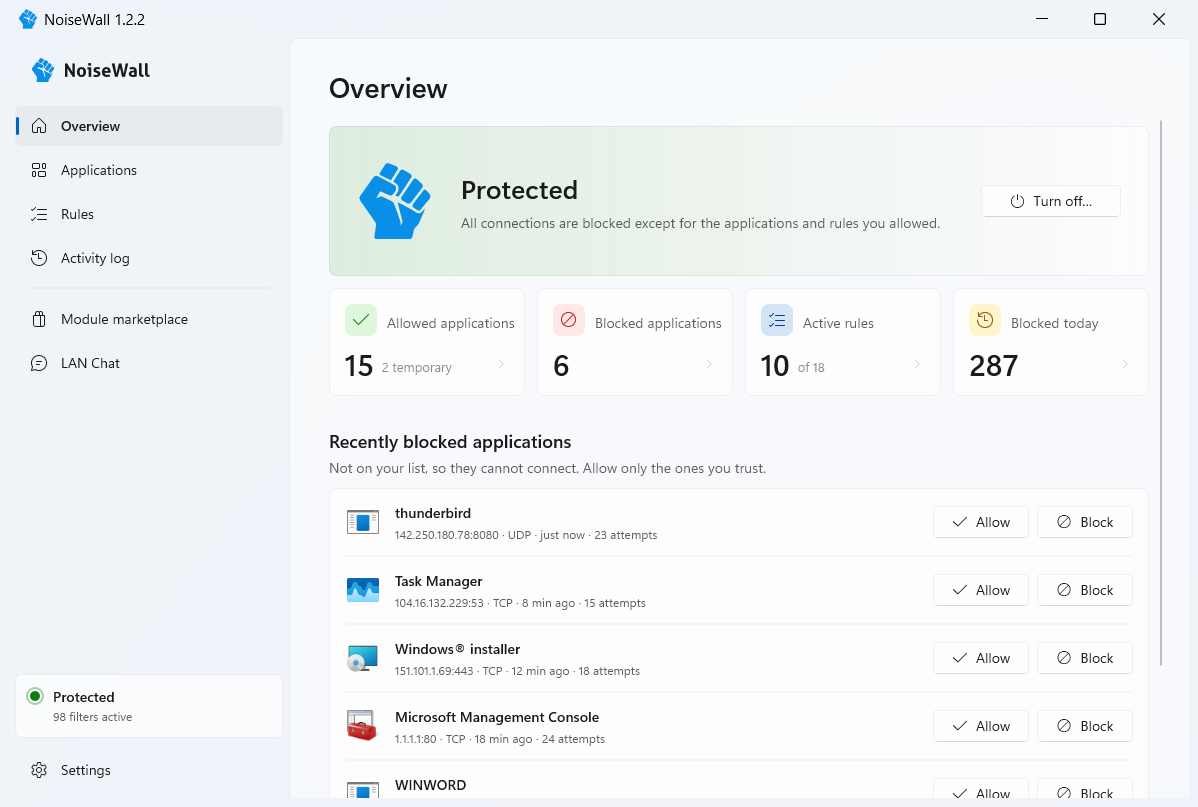
Think of NoiseWall as a doorman with a guest list. Every program that wants to connect to the internet or the network has to get past him:
- The program is on the allowed list → the doorman lets it through.
- The program is not on the list → the doorman does not let it through and asks you whether you want to allow it (a notification in the bottom-right corner).
- The program is on the blocked list → he doesn't let it through and doesn't even ask anymore.
This works in both directions: out (a program connects to the internet) and in (someone from outside connects to your computer).
NoiseWall has two parts. The service runs in the background all the time (even when you close the window) and guards the network. The app (the window and the icon next to the clock) is only for control and notifications. Protection works even while Windows starts, before anything else runs.
2. First steps after installation
- Run the wizard (it opens by itself on first launch, otherwise Settings → Setup wizard). It asks, for example, whether you use network drives or a network printer, and which browsers you have.
- Open your usual programs – browser, e-mail, Discord, Spotify… A notification pops up for each one that tries to connect.
- Click Allow for programs you know. For unknown ones, click Block or Later.
- Done. After a few days you will have allowed everything you really use, and NoiseWall will only ask about new programs.
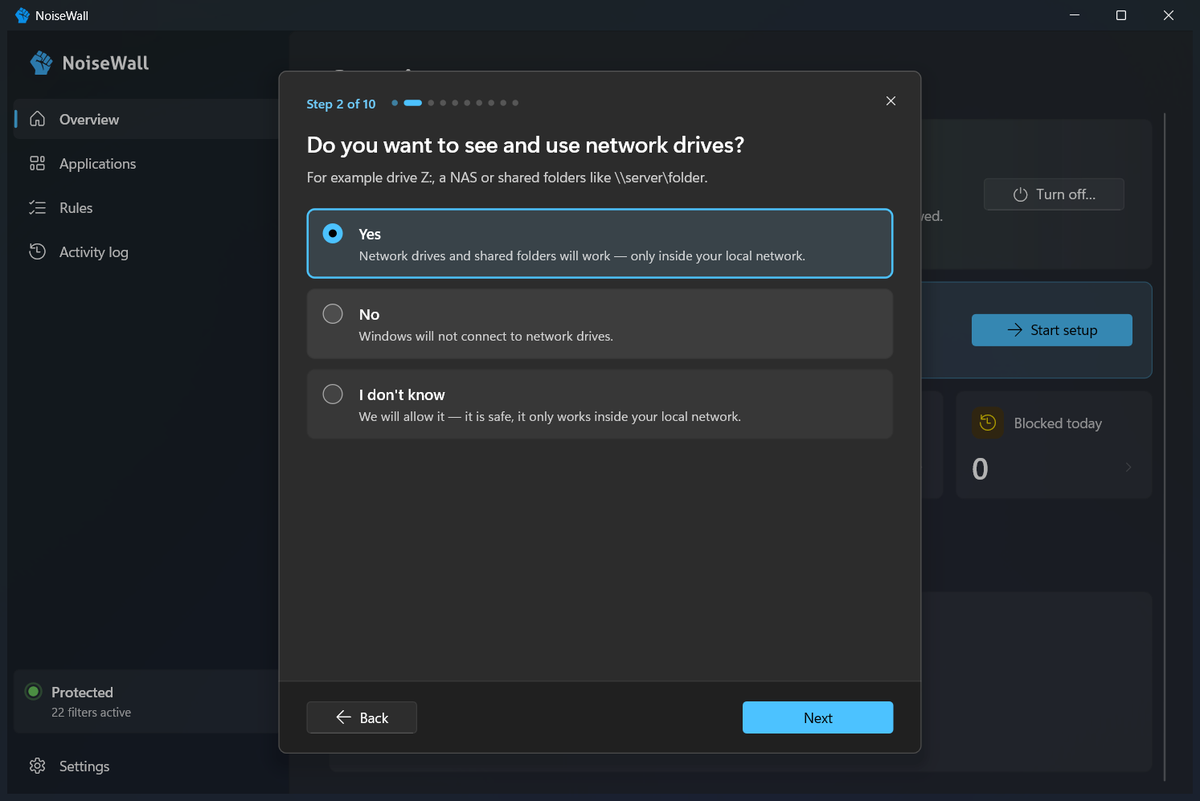
To keep your computer connected, a fresh installation allows only what Windows itself needs: getting an IP address (DHCP), name resolution (DNS), accurate time (NTP), IPv6 and Windows on the local network (network drives, printers – never the internet). No program (not even your browser) is allowed until you allow it.
The NoiseWall installer, program, service and modules are digitally signed by NOISE ARTILLERY s. r. o. (a Microsoft Artifact Signing certificate, with a timestamp). That is why Windows shows the verified publisher NOISE ARTILLERY s. r. o. during installation. You can check the signature yourself: right-click the file → Properties → the Digital Signatures tab. If the signature is missing or belongs to someone else, the file does not come from us – do not install it.
For a new version Windows SmartScreen may still show a warning for a while, until the version gains reputation. NoiseWall checks the signature of modules itself, only with data Windows already has stored – nothing is downloaded for it.
3. Notifications – what to do when they pop up
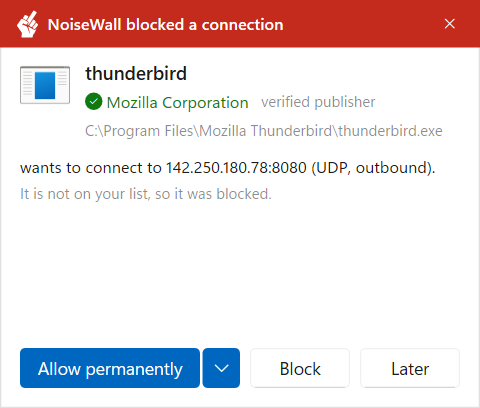
When a program that is not on the list yet tries to connect, a notification appears in the bottom-right corner with a red “NoiseWall blocked a connection” banner – so you can tell it apart from ordinary Windows messages at a glance (NoiseWall's informational pop-ups, e.g. about a program update, are grey). In Settings you can also turn on a sound when a notification appears.
While a notification (or a LAN Chat message) is waiting for you, the NoiseWall icon at the clock is a red fist with a raised middle finger; once it is dealt with, it turns blue again. With the Overview open, the big fist briefly shows the same gesture whenever NoiseWall blocks an unknown program.
| Button | What it does | When to use it |
|---|---|---|
| Allow permanently | Adds the program to the allowed list. From now on it can connect (a signed program even after it updates). | You know the program and want it to work (browser, Discord, Office…). |
| Block | Adds the program to the blocked list. It won't connect and NoiseWall won't ask again. | You don't know the program, or you don't want it to send anything (e.g. offline games, tools that “phone home”). |
| Later | Changes nothing, the program stays blocked. It asks again in 10 minutes. | You can't decide. Find out what the program is and decide later. |
Temporary permission
If you only need a program for a short while (e.g. a one-off update, an installer), click the small arrow ▾ right next to the Allow permanently button in the notification and choose 5, 15 or 30 minutes, 1 hour, 4 hours, 24 hours or until restart. In the applications list you will see a label like “Temporary · 42 min left”. In the application details you can extend the permission or make it permanent. When the time runs out, NoiseWall blocks the program again, shows a short message, and asks the next time the program tries to connect.
You can change any decision later on the Applications page. Also, the notification never takes over your keyboard and ignores clicks for a split second after it appears, so you won't dismiss it by accident.
Verified publisher – how to spot a fake
Reputable programs are digitally signed by their maker. NoiseWall checks the signature and shows who published the program:
- ✓ Microsoft Corporation – verified publisher – the signature is valid, the program really comes from this maker. This kind of signature cannot be forged.
- ⚠ Unknown publisher (not signed) – the program has no signature. It isn't necessarily harmful (many small and older programs aren't signed), but be careful. If you see “claims: …” below it, that is just information anyone can write into the file – it is not verified.
NoiseWall also rejects a signature whose certificate Windows already knows to be revoked (for example because it was stolen). It only uses what Windows already has stored – nothing is downloaded for this.
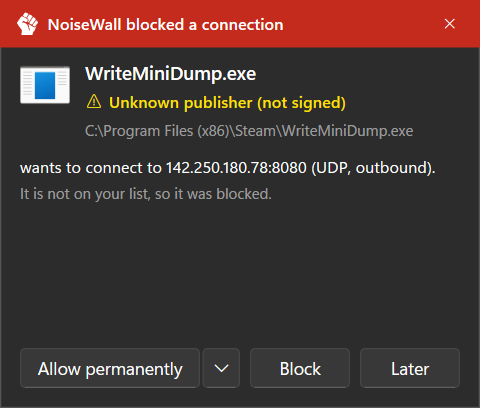
Only allow what you know. If a program has the name of a well-known app but the publisher doesn't match (e.g. “Google Chrome” from an unknown publisher) or it sits in an odd folder (e.g. Temp, Downloads), block it.
“Windows kernel (System)” and “svchost.exe”
Some notifications don't belong to an ordinary program, but to Windows itself:
- Windows kernel (System) – the heart of Windows (
ntoskrnl.exe) and its drivers. Things like network drives (Z:, NAS) go through it. - svchost.exe – the Windows “service host”: Windows Update, printing, name resolution, device discovery…

These notifications offer two extra shortcuts:
- Allow Windows on the local network – Windows may communicate on your home/office network (drives, printers), never with the internet. This is usually what you want.
- Don't ask about Windows – NoiseWall stops asking about Windows components; they will be blocked silently and you will only see them in the Activity log.
Allow for the Windows kernel never allows the whole kernel – it creates a narrow rule just for that service (port) and just for the local network.
4. Applications
The Applications page is your guest list. For each program you see its icon, name, verified publisher, file path and status Allowed / Blocked.
- Add application – the button at the top right; you pick an
.exefile. - Block / Allow… – changes the status. Allowing a previously blocked application asks for confirmation (and shows the publisher, just to be safe).
- Pencil (Edit) – details: Allow incoming connections (only if the program must accept connections from outside, e.g. hosting a game), Follow updates (same publisher), editing the path.
- Bin (Remove) – the program goes back to being unknown: it is blocked and NoiseWall will ask again the next time it tries to connect.
- The ⚠ User folder label – the program is installed in your user profile (e.g. Discord, Spotify). Files there can be changed without administrator rights, so only allow programs you trust. NoiseWall re-checks the signature after every change.
Application updates (Discord, Teams, Claude…)
Some programs move to a new folder with every update, for example …\Discord\app-1.0.9034\ → …\Discord\app-1.0.9035\. Other firewalls then block them and you have to allow them again.
When you allow a program, NoiseWall remembers its verified publisher. When a new version shows up with the same name, in a folder with a new version number, and signed by the same publisher, the permission is carried over automatically and you just get a notice (“updated — access kept”). A fake file without the correct signature can never get through this way.
For every allowed program NoiseWall remembers what it is: for a signed program its publisher, for an unsigned one the exact file content (a SHA-256 fingerprint). If the file changes (an unsigned program has different content, or a signed program is signed by a different publisher), NoiseWall keeps it blocked:
- in the Applications list it has the Changed badge,
- the Overview page shows a red notice,
- a notification appears once next to the clock.
If you just updated the program yourself, open its details on the Applications page (pencil) and click Allow this version. If you didn't, leave it blocked and scan your computer with an antivirus.
This means unsigned programs need this one click after every update. Signed programs from the same publisher get through by themselves. NoiseWall notices a change to a signed file at once: it blocks the program briefly (usually for less than a second) until the signature has been checked again, and if everything is fine, access is back right away (the service log shows “File changed … blocked until it is verified again”).
5. Rules
Most things are solved by allowing an application. Rules are for cases where you need finer control – for example “Windows may use the local network, but not the internet” or “block this address for all programs”. You turn each rule on/off with the switch on the left.

If rules “clash”, this applies: a blocking rule always wins over an allowing rule and over an allowed application. An allowing rule wins over a blocked application. Everything else is blocked.
Predefined rules – what to turn on
| Rule | What it's for | Recommendation |
|---|---|---|
| DNS (Windows DNS Client) | Translates names like thor or microsoft.com into addresses. Without it, network drives by name (\\server), Windows Update, Microsoft Store and many programs don't work. It may only reach the DNS servers set in Windows (shown in the rule as $dns) and adjusts itself automatically when the network changes. | Turn on |
| DHCP (IPv4 address) | The computer asks the router for an IP address. Without it you may eventually lose your connection completely. | Turn on (almost always) |
| DHCPv6 (IPv6 address) | The same for IPv6. | Turn on |
| NTP (Windows Time) | Accurate time. A wrong clock breaks secure websites (HTTPS) and sign-ins. | Turn on |
| IPv6 Neighbor Discovery | Devices on an IPv6 network find each other. | Turn on |
| Windows kernel - local network | Network drives, shared folders, NAS (e.g. Z:). Local network only. | Turn on if you have network drives |
| Windows services - local network | Printers, finding devices and computers, streaming, computer names on the network. Local network only. | Turn on if you have a network printer or other devices |
| Network drives (SMB, local network only) | A narrower version: network drives only. Already included in “Windows kernel - local network”. | Not needed if the rule above is on |
| LLMNR / mDNS (local name resolution) | Finds a computer or NAS by name (e.g. \\nas or nas.local) when DNS doesn't know it. In many home networks, network drives by name don't work without these. They turn on automatically when network drives are turned on. | Turn on if you use network drives by name |
| Microsoft Store and Windows add-ons | Microsoft Store apps, language packs and optional Windows features are not downloaded by Windows “for itself”, but on behalf of the signed-in user (by the Delivery Optimization and BITS services). This rule lets them use the web (ports 80 and 443) only when they are acting for you. Without it, Store apps, language packs and optional features won't download. Why it is off: while it is on, any program you run can ask Windows to download or send data through this exception – and so get around the list of allowed applications. This was found by an independent security review. That is why the setup wizard recommends answering No, and after updating from version 1.0.1 the exception is turned off once (NoiseWall shows a one-time notice about it). The switch is in Settings → Windows. | Off (default) – turn on only while installing from the Store, a language pack or an optional feature, then turn it off again |
| VPN built into Windows | Only for VPN connections set up directly in Windows (Settings → Network & internet → VPN) of the IKEv2, L2TP/IPsec and SSTP types. Each part applies only to its own Windows service (IKEEXT, the Windows kernel for L2TP, SstpSvc). VPN programs such as OpenVPN or WireGuard do not need this switch – you allow them like any other application and they work even when it is off. See the VPN recipe. There is also a switch in Settings. | Off (default) – turn on only if you use the VPN built into Windows |
| Certificate revocation checks (lsass) | Windows checks whether a website's or program's certificate has been revoked (e.g. because it was stolen) – it asks the certificate issuer over port 80. Only the Windows security component lsass.exe may do this, outbound only. Without it, secure connections may be slower and revoked certificates won't be detected. There is also a switch in Settings. | Turn on (default) |
The easiest way: in Settings, turn on Allow Windows on the local network – it turns on both “local network” rules at once.
The DNS rule allows the Windows service that translates names for all programs. So even a program that is not allowed can have a name translated through it. In theory this can be misused as a very slow hidden channel for sending data out. This is a known limit of all firewalls that decide by application (Windows Firewall too). NoiseWall at least restricts it to the DNS servers set in Windows.
Rule fields – what they mean
You create a new rule with the Add rule button. An empty field means “anything”.
| Field | Meaning | Examples |
|---|---|---|
| Name | A label for you, so you know what the rule is for. | Living room printer |
| Action | Allow or Block. | |
| Direction | Outbound = the computer connects somewhere. Inbound = someone connects to the computer. In + out = both. | Browsing the web = outbound. Remote Desktop to this PC = inbound. |
| Protocol | The “language” of the connection. TCP = most programs (web, e-mail, drives). UDP = quick messages (DNS, games, calls). ICMP = ping. Any = everything. | If you're not sure, leave it at Any. |
| Remote addresses | Who the computer communicates with. A single address, a range or a whole network. Separate multiple values with commas. | 192.168.1.50192.168.1.10 - 192.168.1.20192.168.0.0/16 (whole home network)2001:db8::/32 |
| Remote ports | The “doors” on the other side – they determine the service. For ICMP this field is called ICMP code. | 443 (web HTTPS), 80, 443, 1000-2000 |
| Local ports | The “doors” on your computer. Mainly used for incoming connections. For ICMP this field is called ICMP type. | 3389 (Remote Desktop) |
| Application | Which program the rule applies to. Empty = all programs. System = the Windows kernel. | C:\Windows\System32\svchost.exeSystem |
If you want “local network only”, put this into Remote addresses:10.0.0.0/8, 172.16.0.0/12, 192.168.0.0/16, fe80::/10, fc00::/7
Commonly used ports
| Port | Protocol | Service |
|---|---|---|
| 53 | UDP/TCP | DNS – name resolution |
| 80, 443 | TCP (443 also UDP) | Web (HTTP, HTTPS) |
| 445 | TCP | Network drives (SMB) |
| 137–139 | UDP/TCP | NetBIOS – older file sharing and computer names |
| 3389 | TCP | Remote Desktop (RDP) |
| 9100, 631, 515 | TCP | Network printers (RAW, IPP, LPD) |
| 25, 465, 587 | TCP | Sending e-mail (SMTP) |
| 993, 995 | TCP | Receiving e-mail (IMAP, POP3) |
| 123 | UDP | Time (NTP) |
| 5353 / 5355 / 1900 | UDP | Finding devices on the network (mDNS / LLMNR / UPnP) |
Recipes – ready-made setups
Network drive (Z:, NAS, \\server\folder)
- In Settings, turn on Allow Windows on the local network.
- In Rules, check that DNS is turned on (when you connect to the drive by name, e.g.
\\thor). - If it still doesn't work, look at the Activity log and type
445,53or5355into the search box.
Network / Wi-Fi printer
- Turn on Allow Windows on the local network (for finding the printer).
- If printing doesn't work, add a rule: Allow · Outbound · TCP · Remote ports
9100, 631, 515· Remote addresses = home network (see the tip above) · ApplicationC:\Windows\System32\spoolsv.exe.
Remote Desktop to this computer (from the home network only)
Rule: Allow · Inbound · TCP · Local ports 3389 · Remote addresses = home network · Application C:\Windows\System32\svchost.exe. Remote Desktop must also be turned on in Windows (Settings → System → Remote Desktop).
Windows Update and Microsoft Store
- In the wizard, answer the question about Windows with “Only for updates and basic services” – this allows the Windows Update, BITS, Delivery Optimization, Update Orchestrator and Microsoft Store Install Service services.
- Store apps, language packs and optional features are downloaded on behalf of the signed-in user. When you need to install one of them, temporarily turn on Microsoft Store and Windows add-ons in Settings → Windows and turn it off again after the installation (the reason is explained under predefined rules).
- DNS must be turned on as well.
There is no need to allow the whole svchost.exe (all Windows services). That is a much broader permission – each of about 200 services could go anywhere.
VPN
What to do depends on how you connect to the VPN:
- A VPN program (OpenVPN, WireGuard, your VPN provider's app): allow it like any other application – click Allow permanently in the notification or add it on the Applications page (e.g.
openvpn.exeand the OpenVPN GUI,wireguard.exe). The VPN built into Windows switch is not needed for this. - The VPN built into Windows (a connection added in Settings → Network & internet → VPN, type IKEv2, L2TP/IPsec or SSTP): turn on VPN built into Windows in Settings → Windows.
Ping (checking whether something on the network is reachable)
Rule: Allow · Outbound · ICMP · ICMP type 8 · Application empty. For IPv6, the same rule with protocol ICMPv6 and type 128.
Block a specific address for all programs
Rule: Block · In + out · Any protocol · Remote addresses e.g. 203.0.113.7, 198.51.100.0/24 · Application empty. A blocking rule wins even over allowed programs.
A program should only reach the home network (e.g. a NAS client, a LAN game)
Don't allow the program on the Applications page (that would let it go anywhere). Instead, create a rule: Allow · In + out · Any protocol · Remote addresses = home network · Application = the path to its .exe.
6. Activity log
Here you'll find all blocked connection attempts (the last 2000): time, program, direction (arrow up = out, down = in), address, port and reason.

- Reason “Not on the allowed list” – you haven't allowed the program yet. You can allow it right here.
- “Application blocked” – you blocked it yourself.
- “Rule: …” (with a small red fist with a raised middle finger) – one of your blocking rules blocked it.
- Search also works with port numbers and addresses – handy when you're trying to find out why something doesn't work.
7. Settings
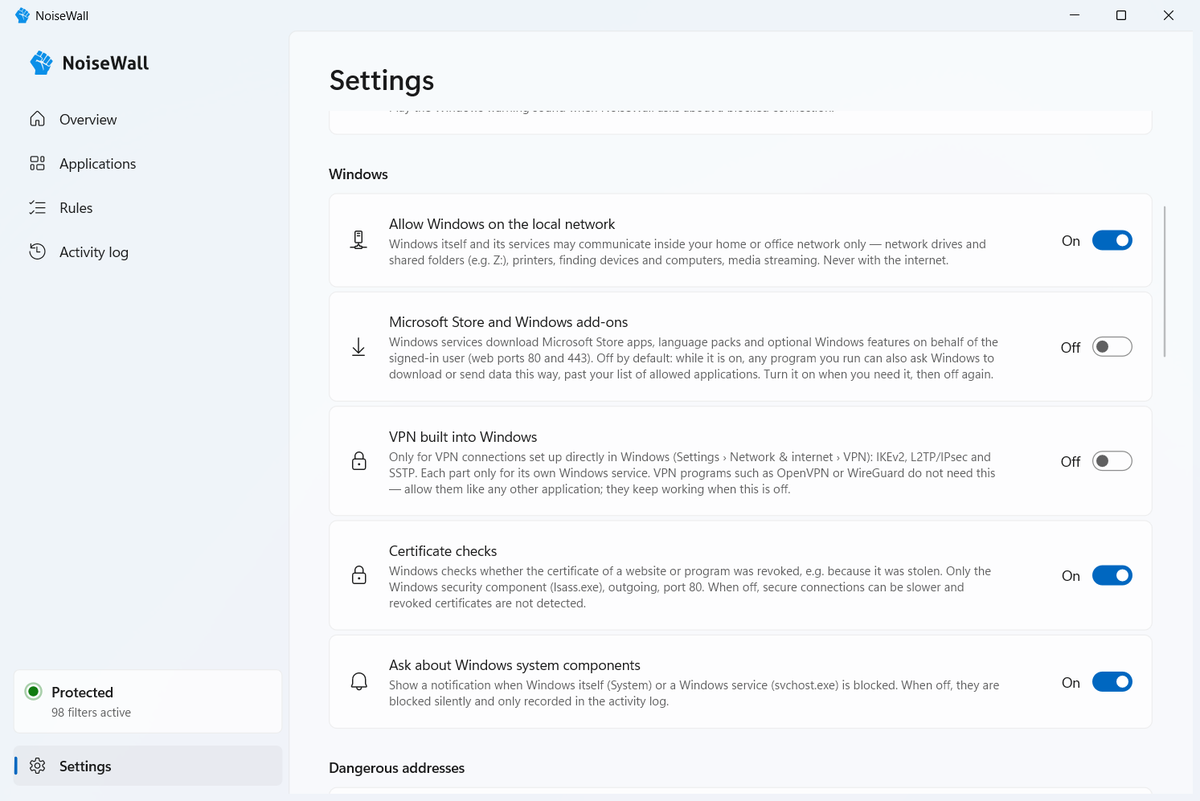
| Setting | What it does | Recommendation |
|---|---|---|
| Filtering | The main protection switch. Off = everything is allowed. | On |
| Allow local (loopback) traffic | Connections inside the computer (programs talking to each other). Never leaves the computer. | On |
| Block during Windows startup | The network is blocked even during startup, until the NoiseWall service is running. | On |
| Notifications | Ask about unknown programs. Off = block silently. | On |
| Allow Windows on the local network | Network drives, printers, devices – only on your home/office network. | On if you have network devices |
| Sound for notifications | The Windows warning sound when NoiseWall asks about a blocked connection. | Your choice (off by default) |
| Microsoft Store and Windows add-ons | Store apps, language packs and optional features – Windows services download them on behalf of the signed-in user, over the web only (ports 80, 443). While it is on, any program you run can use this exception. More in predefined rules. | Off – turn on only while installing, then turn off |
| Certificate checks | Windows checks whether a website's or program's certificate has been revoked (e.g. because it was stolen). Only lsass.exe, port 80. | On |
| VPN built into Windows | VPN connections set up directly in Windows (IKEv2, L2TP/IPsec, SSTP). VPN programs such as OpenVPN or WireGuard don't need it. More in the VPN recipe. | Off unless you use the VPN built into Windows |
| Ask about Windows system components | Notifications for “System” and “svchost.exe” too. | Your choice – turn off if they annoy you |
| Language | 21 languages, chosen from a list (by default the language of Windows). English and Slovak are checked by people; the other languages are machine translations, marked as such in the list. | |
| Interface size | 80 – 125 %: makes the window and notifications smaller or larger, like zoom in a web browser. | Your choice |
| Start with Windows | The NoiseWall icon appears after you sign in (needed for notifications). Protection always runs, even without it. | On |
Recording allowed connections
In Settings → Privacy and logging you can turn on Record allowed connections. Then, in the Activity log, the Allowed switch shows you where the programs you have allowed connect to: address, port and its purpose (e.g. “Web (HTTPS)”), the number of connections and when it last happened. The application details include a “Where it connects” overview. This is handy for checking that an allowed program isn't doing anything unexpected.
- It is off by default. The record is kept only in this computer's memory and is cleared on restart. However, it can show which servers you visit.
- With the Selected… option you can track only some programs, for example everything except your browser.
- For Windows services, the whole
svchost.exeprocess the service runs in is recorded.
Dangerous addresses (blocklists)
In Settings → Dangerous addresses you turn on lists of addresses that NoiseWall blocks for every program – including the ones you allowed:
| List | What it blocks | Recommendation |
|---|---|---|
| Known malicious networks (Spamhaus DROP) | Networks run by spammers and cybercriminals (source: www.spamhaus.org). A small, carefully kept list, both directions. | On (default) |
| Your own malicious networks | Your own addresses and ranges, separated by commas, e.g. 203.0.113.0/24, 198.51.100.7. Blocked in both directions. | As needed |
The lists come with the installation, so they work right away. When Download the lists automatically is on, the NoiseWall service downloads the lists you turned on once a day over HTTPS from the sources above (it may connect to port 443 for that). Only the lists of addresses are downloaded – nothing about you is sent. For each list you see when it was last updated and how many addresses it has; Show list opens it. A downloaded list is checked: it never blocks your local network or overly broad ranges, and if a download fails, the last valid list stays in use.
Connections blocked by a list appear in the Activity log with the reason “Dangerous address: …”.
NoiseWall updates
NoiseWall tells you when a new version is out and installs it only when you click.
- What is downloaded and from where: once a day (the first time about 10 minutes after the computer starts), the NoiseWall service downloads a small list of versions from
wall.noiseartillery.sk(the fileupdate/latest.jsonand its signature). The installer of a new version (about 7 MB) is downloaded only when you click Install. NoiseWall uses no other place for updates. - What is sent: nothing about you. It is an ordinary request for a file – no identifier, no version number and nothing about your computer. The website only sees your IP address, as with any visit.
- Where you see it: a new version is announced by a notification at the clock (the same as for connections) and by a card on the Overview with the buttons Install and Later. Settings → Updates shows the state, the time of the last check, the Check now button and the Check for updates automatically switch.
- Network: while checks are on, NoiseWall allows connections to port 443 (HTTPS) only for its own NoiseWall service – for no other program.
Four things must be true before anything is installed. If anything does not match, nothing is installed and NoiseWall tells you why:
- the list of versions is digitally signed with the key of NOISE ARTILLERY s. r. o. (the public key is built into NoiseWall – a forged list does not pass, even if someone took over the website),
- the downloaded installer has exactly the SHA-256 fingerprint given in the signed list,
- the installer has a valid digital signature of the publisher NOISE ARTILLERY s. r. o.,
- it is a newer version than yours – NoiseWall never installs an older one.
After you click Install, the window closes for a moment, the service installs the new version and the window opens again with the result. Your settings and rules stay. The computer stays protected during the update – the NoiseWall filters stay in Windows while the files are replaced. Every step (check, download, verification, installation) is written to activity.log, and the installation log also goes into the diagnostic file.
Turn checks off with the switch in Settings → Updates. You then download new versions yourself from wall.noiseartillery.sk.
Backing up and transferring settings
- Export… saves all applications, rules and options to a file. Useful as a backup or for moving to another computer; paths from your user profile are adjusted on the other computer.
- Import… loads the file and shows what will change before applying it, including a list of programs that will get network access. Merge adds only what you don't have yet and never loosens anything. Replace replaces everything. Protection always stays on during this.
- Choose a backup… – NoiseWall keeps the previous version every time something changes (the last 10). If you don't like a change, you can go back to the previous state.
Uninstalling NoiseWall also deletes the automatic backups. If you want to keep your settings, export them first.
8. Modules
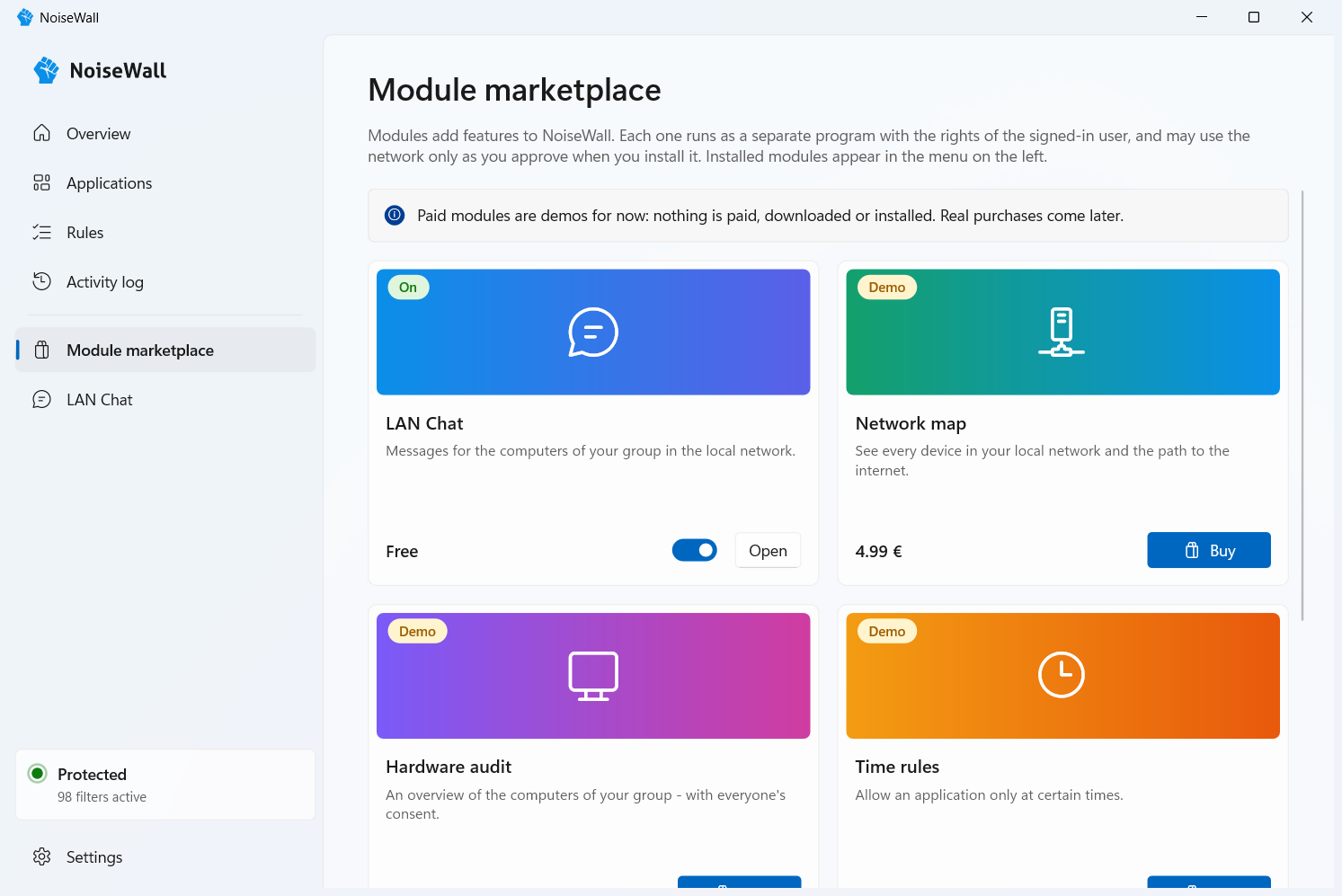
Modules add features to NoiseWall. You find them in the left menu below the line: at the top the Module marketplace, below it the modules you installed and turned on (for example LAN Chat). Clicking a module opens it right in the NoiseWall window. A module that is turned off disappears from the menu; turn it on again in the marketplace.
- Each module is a separate program of NOISE ARTILLERY s. r. o. It runs with the rights of the signed-in user, never as administrator and never inside the firewall. If a module crashes, protection keeps running.
- It does nothing until you install it. When you install it, you see what the module may do and what NoiseWall adds for it. Without your consent it gets nothing.
- It cannot change rules or settings, turn protection off or allow another program.
- It may use the network only as you approved – for example only the local network and only one port. NoiseWall creates rules “Module: …” for it that apply only to the module's file.
- Only a verified file runs: the one shipped with your NoiseWall version and digitally signed by NOISE ARTILLERY s. r. o. If someone replaced it or its signature were not valid, the module would not start.
- A new version of a module that asks for other permissions stays off until you approve them again (the switch on the module's card).
- The switch on the card turns a module on or off; in the module's details you can uninstall it. Turning it off or uninstalling it ends the module and removes its rules and its exception in Windows Defender Firewall.
The paid modules in the marketplace (Network map, Hardware audit, Time rules, Traffic monitor) are demos for now, marked “Demo”. “Buying” and “installing” them only shows how it will work: nothing is paid, downloaded or installed. Real purchases come later.
It starts the module at every sign-in (with your rights) and restarts it after a crash – at most 3 times in 10 minutes. If Windows Defender Firewall is on, NoiseWall adds an exception “NoiseWall - …” to it for incoming messages from the local subnet and removes it when you turn the module off. Modules download nothing from the internet, and NoiseWall sends nothing about them anywhere.
LAN Chat
Short text messages between computers in the same local network (at home, in the office – by cable or Wi-Fi) right in the NoiseWall window – no server, no account, no internet.
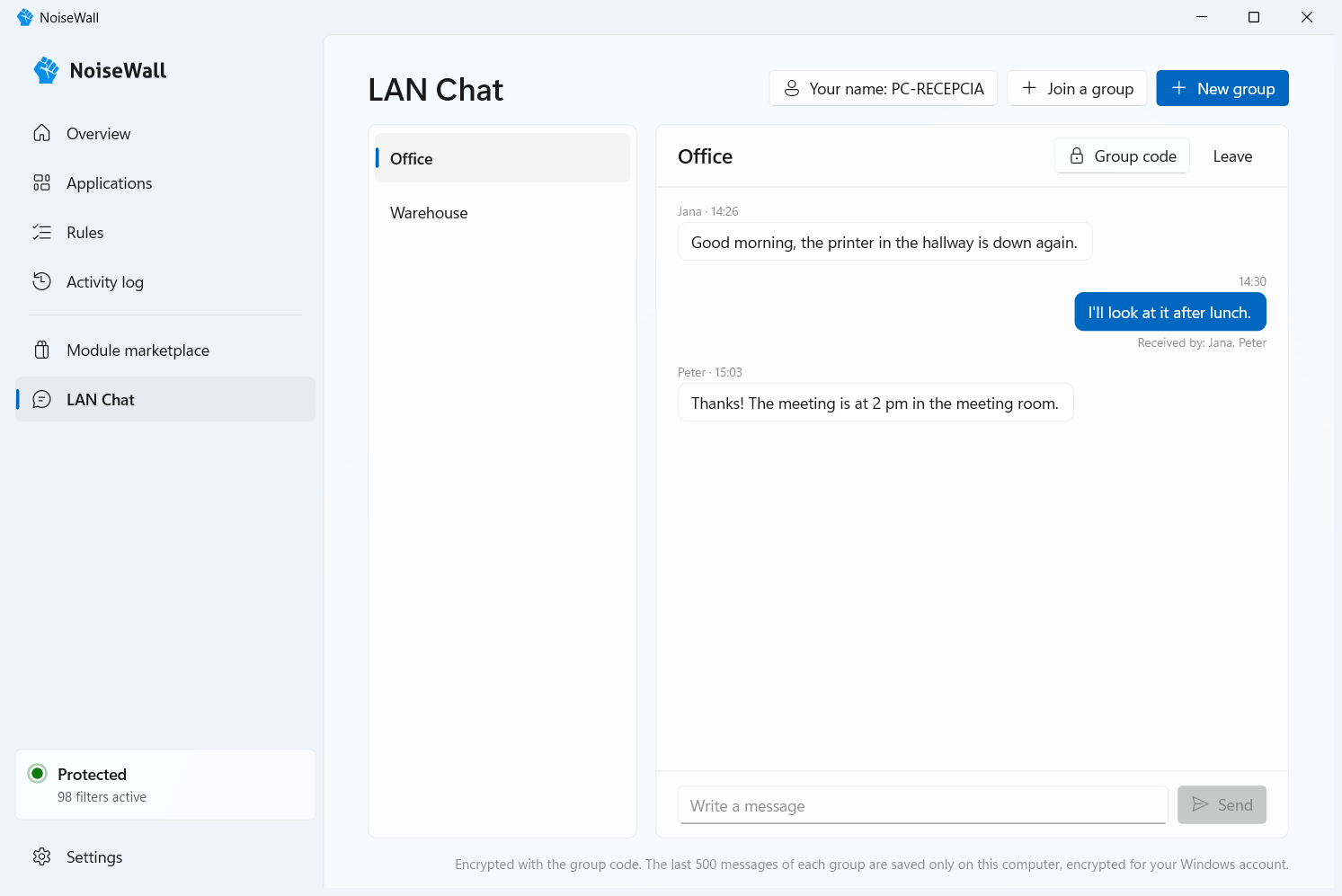
- In the Module marketplace, click Install at the LAN Chat module, read what the module may do and confirm with Turn on. LAN Chat appears in the menu on the left.
- At the top, click Your name: … and enter the name the others will see (the computer name by default). The name applies to all groups.
- Click New group and give the group a name – the group code appears (25 characters, e.g.
7KQ4M-2XD9P-…). - Give the code to the people who should be in the group – in person or by a channel you trust. They choose Join a group, enter the code and name the group as they like.
- Write a message and press Send (or Enter). Below the message you see who received it; “Sent – nobody has confirmed it yet” means no other computer of the group has confirmed it so far.
- Notifications: a new message appears at the clock and stays there until you close it or open the group it came to; clicking it opens the group. Until then the NoiseWall icon at the clock is red with a raised middle finger. While the group is open in front of you, no notification appears. The number of unread messages is shown next to LAN Chat in the menu and next to the group.
- Who can read: only those who have the group code. Messages are encrypted (AES-256-GCM) with a key derived from the code; without the code nobody can read or forge a message. So keep the code private.
- Where messages go: only to the local network (UDP port 47652, broadcast to the computers of the network), never to the internet. The computers of the group that are switched on and in the same network receive them.
- What is stored: on your computer your groups (name and code) and your name, and the last 500 messages of each group – text only, in the file
%LOCALAPPDATA%\NoiseWall\LanChat\history.dat, encrypted for your Windows account (no other user or computer can read it). The history stays when the module or the computer is turned off and on. Messages cannot be edited or deleted one by one. When you Leave a group, its history is deleted too; uninstalling NoiseWall deletes the history of the user who runs the uninstall. - What the others see: your name in the group and the address of your computer in the local network.
- How it works inside: a separate program of the module sends and receives the messages with your rights; the NoiseWall window only shows them and checks before connecting that it talks to the genuine module file.
- Users signed in to the same computer cannot message each other – LAN Chat is meant for different computers.
9. Exiting the app vs. turning off protection
Right-click the NoiseWall icon next to the clock and you have two options:
| Option | Protection | Notifications |
|---|---|---|
| Exit (protection keeps running) | Keeps running | None – new programs are blocked silently (you'll see them in the Activity log) |
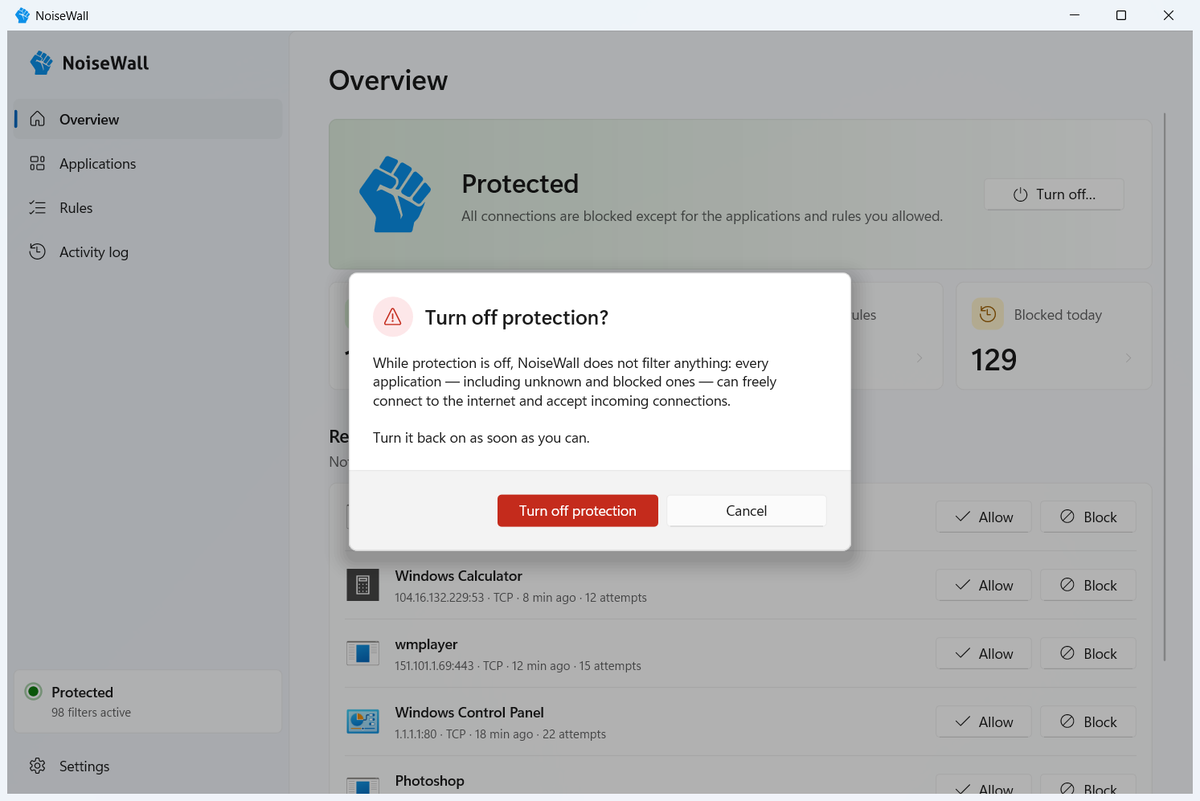
| Exit and turn off protection… | Off – everything allowed | None |
Closing the window with the X button only hides it to the icon next to the clock.
10. Troubleshooting
- Nothing works at all – no internet, no network.
- In Rules, check that DHCP and DNS are turned on. Without DHCP the computer doesn't get an address; without DNS it can't translate names.
- I allowed my browser, but pages don't load.
- Turn on the DNS rule. Some browsers translate names through Windows. If the problem only affects secure websites, also turn on NTP (accurate time).
- A network drive (Z:) or NAS doesn't work.
- See the Network drive recipe. The most common cause: DNS or Allow Windows on the local network is turned off.
- Printing doesn't work.
- See the Printer recipe.
- A program doesn't work, but no notification appeared.
- Maybe it is already on the blocked list (Applications page), or you clicked Later (it asks again in 10 minutes), or the NoiseWall app is not running. Check the Activity log – search for the program's name.
- Notifications about “System” or “svchost.exe” annoy me.
- Turn on Allow Windows on the local network and turn off Ask about Windows system components.
- An application stopped working after an update.
- For a signed application NoiseWall usually carries the permission over by itself (see Updates). If it has the Changed badge on the Applications page (typically an unsigned application after an update) and you updated it yourself, open its details and click Allow this version. If you didn't update it, leave it blocked and scan your computer with an antivirus.
- A Store app, language pack or optional Windows feature won't install.
- Temporarily turn on Microsoft Store and Windows add-ons in Settings → Windows and turn it off again after the installation. Why it isn't on all the time is explained under predefined rules.
- The VPN won't connect.
- Allow a VPN program (OpenVPN, WireGuard…) like an ordinary application. The VPN built into Windows needs the VPN built into Windows switch. See the VPN recipe.
- The Windows clock is wrong.
- Turn on the NTP rule.
- A game / program needs to accept incoming connections (hosting, P2P).
- On the Applications page → pencil → turn on Allow incoming connections.
Diagnostic file
If something does not work and you want someone to investigate it, open Settings → Diagnostic file → Create…. One text file NoiseWall-diagnostics-…txt is saved on the desktop with the NoiseWall settings (allowed and blocked programs, rules), the activity log (blocked connections including addresses), the service log, NoiseWall errors from the Windows event logs, the Windows version and the names of other filtering software (antivirus, VPN). It contains no passwords, files or browsing history. NoiseWall does not send it anywhere – you can open it in Notepad and decide whom to give it to.
Once an hour the service also writes a “Health” line into its log (%ProgramData%\NoiseWall\service.log) with its memory use and event counts, and it keeps blocked connections in the file %ProgramData%\NoiseWall\activity.log as well (time, program, address, port; at most 2 × 4 MB, older entries are overwritten). All of it stays on this computer – so that problems that show up only after days, or after a restart, can be found. These files are part of the diagnostic file.
11. Emergency network recovery
Open PowerShell or Command Prompt as administrator (Start → type cmd → right-click → Run as administrator) and enter:
"C:\Program Files\NoiseWall\NoiseWallSvc.exe" --remove-filters
Protection is turned off and all filters are removed (it stays off even after a restart). Then open NoiseWall, fix your settings and turn protection back on.
Uninstalling (Windows Settings → Apps → NoiseWall → Uninstall) removes the service and all filters – the network will work just as before.
12. Glossary
| Term | Explanation |
|---|---|
| IP address | The “house address” of a device on the network, e.g. 192.168.1.20 (IPv4) or fe80::1 (IPv6). |
| Port | The “door number” on a device that identifies the service (443 = web, 445 = network drives). |
| TCP / UDP / ICMP | Types of connections. TCP = reliable (web, files), UDP = quick messages (DNS, games, calls), ICMP = diagnostics (ping). |
| Outbound / inbound | Who started the connection: your computer (outbound) or someone from outside (inbound). |
| Local network (LAN) | Devices at home or in the office behind your router. Typical addresses: 192.168.x.x, 10.x.x.x, 172.16–31.x.x, fe80::…. |
| /24, /16 notation (CIDR) | A shorthand for a whole range of addresses. 192.168.1.0/24 = 192.168.1.0 to 192.168.1.255. |
| DNS | The internet's “phone book”: translates a name (e.g. google.com, thor) into an IP address. |
| DHCP | The router automatically assigns the computer an IP address. |
| SMB | The way Windows accesses network drives and shared folders. |
| svchost.exe | A Windows program in which system services run (updates, printing, DNS…). |
| Kernel (System) | The lowest level of Windows (ntoskrnl.exe) and its drivers. Nothing can impersonate it. |
| Digital signature | The maker's electronic “seal” on a program. If it checks out, the program really comes from that maker and nobody has altered it. |
| Loopback | Communication between programs inside one computer (127.0.0.1). Never leaves the computer. |
NoiseWall 1.0 · This guide is included with the installation and works without an internet connection. A Slovak version is available in navod.html.